WRKS AI Meetings for Zoom
WRKS AI Meetings (웍스AI 미팅) writes live meeting notes for teams. When you connect your Zoom account, it receives your meeting's audio, speaker names and in-meeting chat through Zoom Realtime Media Streams (RTMS) and turns them into a live transcript, running notes, documents and whiteboards on a web page your team shares. This guide explains how to add, use and remove the Zoom integration.
1. Before you start
- A WRKS AI Meetings account at meet.wrks.ai. The product interface is in Korean; this guide gives the Korean button labels in brackets.
- A Zoom account on a paid plan with Realtime Media Streams available.
- In your Zoom account settings, the option Share realtime meeting content with apps must be turned on. Your Zoom administrator may need to do this.
- You must be the host of the meeting, or be on its invitee list, to start a stream.
2. Add the app
- Sign in to meet.wrks.ai.
- Open My settings [내 설정] from the menu at the top right, or go to meet.wrks.ai/settings.
- In the Zoom connection [Zoom 연결] section, click Connect Zoom [Zoom 연결].
- Zoom shows the permissions the app requests. Review them and click Allow.
- You return to My settings, which now shows “Zoom account connected” [Zoom 계정이 연결돼 있어요] with your Zoom email address.
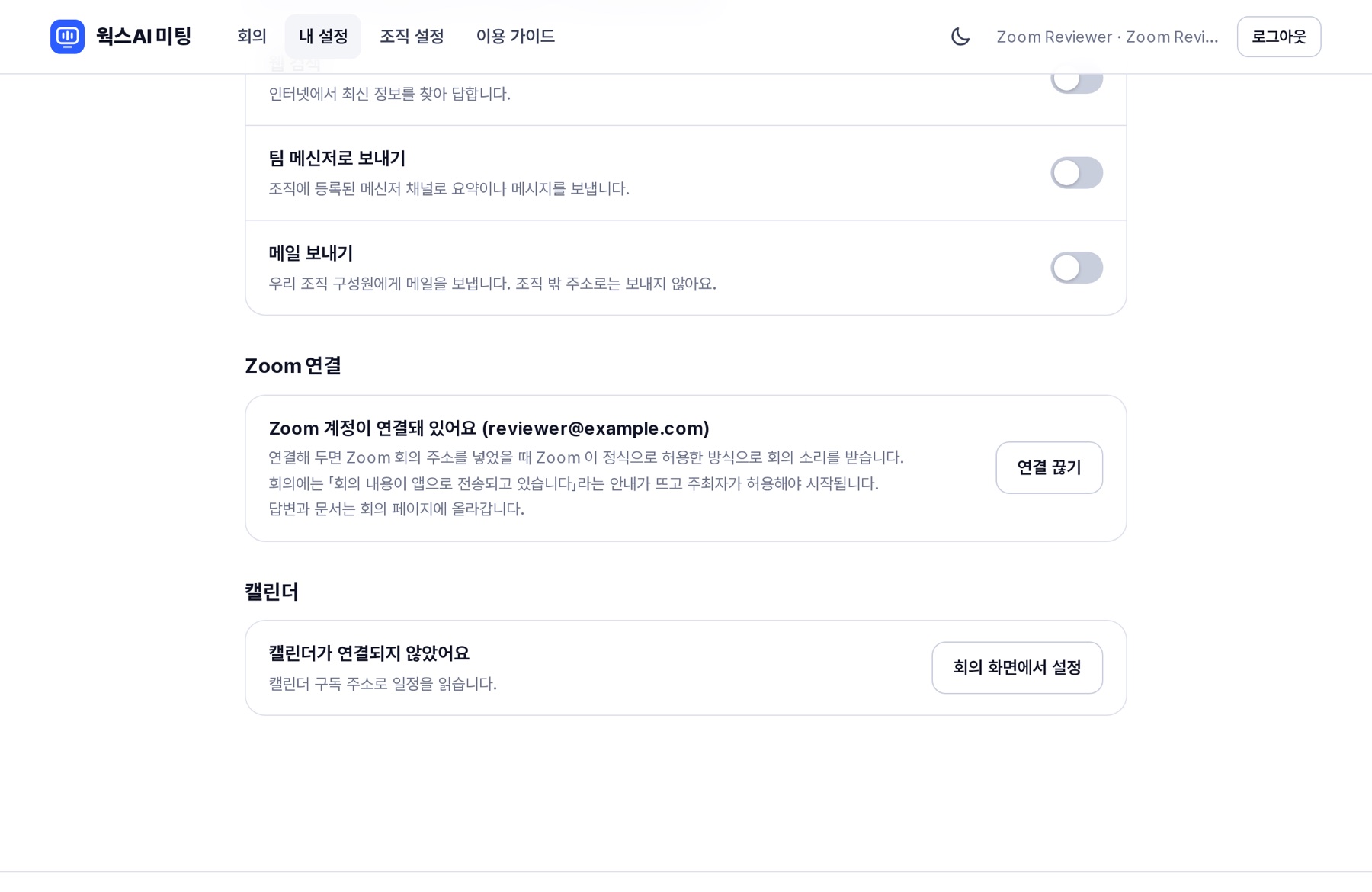
The app is user-managed: each person connects their own Zoom account, and the app only receives content from meetings where that person starts it.
3. Use the app
- Start or join your Zoom meeting.
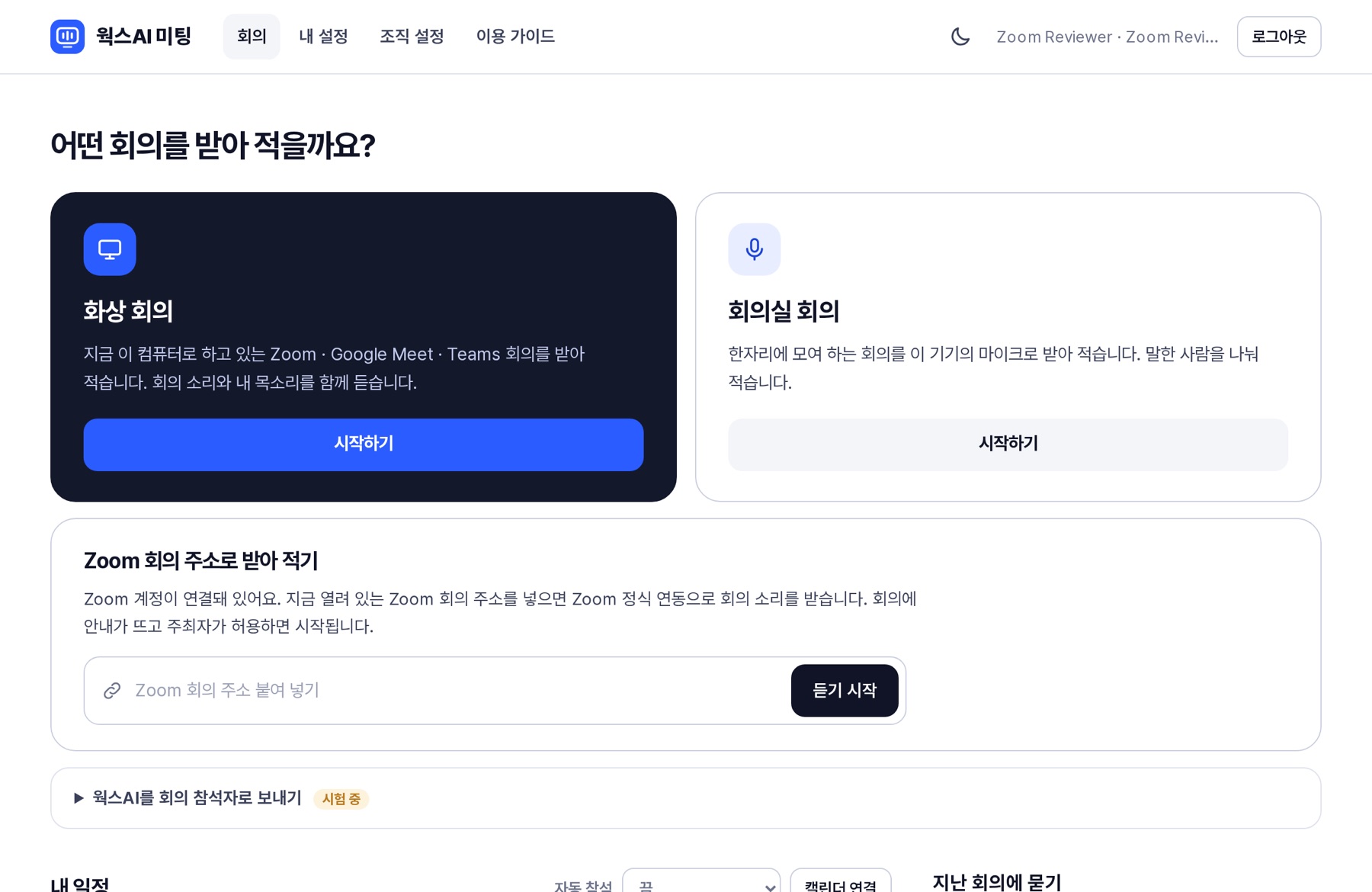
- In WRKS AI Meetings, open the home page [회의]. Under Take notes from a Zoom meeting link [Zoom 회의 주소로 받아 적기], paste the meeting link (for example
https://zoom.us/j/1234567890) and click Start listening [듣기 시작]. - Zoom shows everyone in the meeting a notice that meeting content is being shared with the app. The host is asked to approve the request. Nothing is received until the host approves.
- The meeting page opens. Once the stream starts, its status changes to Attending [참석 중] and the live transcript appears under Transcript [받아 적은 말], with the name of the person speaking.
- Ask WRKS AI to do something by typing in the box at the bottom of the meeting page — for example “Summarise the decisions so far” or “Make a whiteboard of the schedule we discussed”. Answers, documents and whiteboards appear on the meeting page.
- To stop, click Remove WRKS AI [웍스AI 내보내기] on the meeting page (the app closes the stream and asks Zoom to stop it), stop the app from the Zoom meeting's Apps panel, or simply end the Zoom meeting. WRKS AI then writes the final minutes and action items.
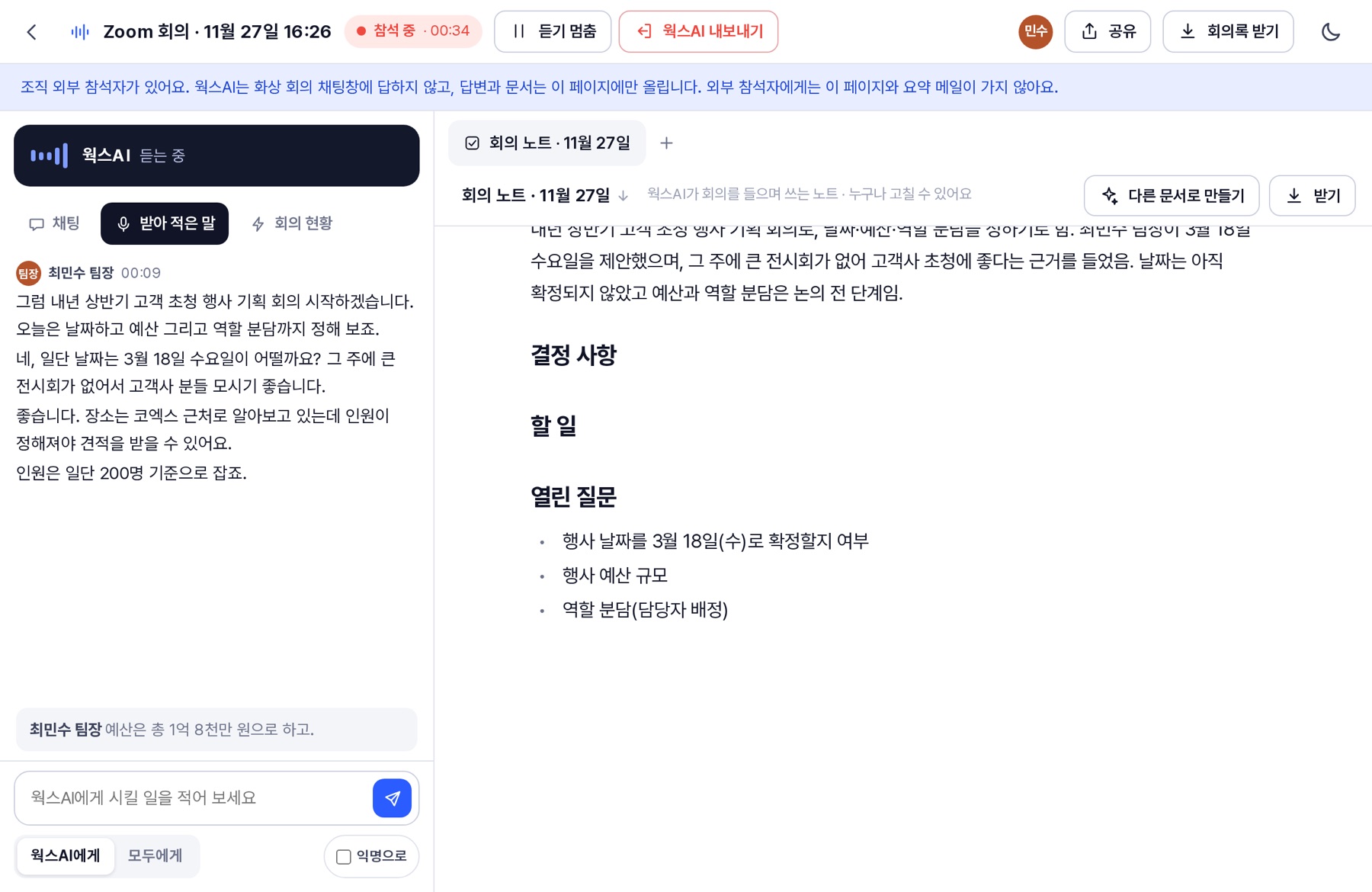
The integration is receive-only. The app does not appear as a participant, does not post into the Zoom meeting chat, and does not change any meeting settings.
4. What the app can access
- View a user (
user:read:user) — your Zoom user ID, account ID and email address, to link your Zoom account to your WRKS AI Meetings account and show which account is connected. - Real-time audio streams of your meetings (
meeting:read:meeting_audio) — meeting audio, used only to produce the transcript in real time. Audio is not stored. - Real-time meeting chat (
meeting:read:meeting_chat) — chat messages sent during the meeting, shown next to the transcript and used as context for notes. - Update a participant's RTMS app status (
meeting:update:participant_rtms_app_status) — to ask Zoom to start or stop the stream for the meeting link you enter. - Events — “RTMS started” and “RTMS stopped” for meetings, so the app knows when to connect and when to finish the notes.
See the Privacy Policy for how this data is handled.
5. Remove the app
From WRKS AI Meetings:
- Open My settings [내 설정] → Zoom connection [Zoom 연결].
- Click Disconnect [연결 끊기]. The app revokes its Zoom tokens and deletes them together with your Zoom user ID and email.
From Zoom:
- Sign in to the Zoom App Marketplace.
- Click Manage → Added Apps, or search for “WRKS AI Meetings”.
- Click Remove next to the app and confirm.
When you remove the app in Zoom, Zoom notifies us and we delete your Zoom tokens, user ID and email immediately. Meeting notes you already created in WRKS AI Meetings stay in your workspace until you delete them; you can delete any meeting from its page, or write to support@wrks.ai to have your data deleted.
6. Troubleshooting
- “Only people on the invitee list can start” — you joined with a link only. Ask the host to start it, or have the host add you as an invitee.
- “Your Zoom account has no realtime stream entitlement” — Realtime Media Streams is not available on the Zoom account. Contact your Zoom administrator.
- “Share realtime meeting content with apps is off” — turn the setting on in Zoom account settings.
- “You are not in the meeting yet” — join the Zoom meeting first, then click Start listening again.
- Nothing happens after clicking Start listening — the host has not approved the request yet. Check the prompt in the host's Zoom window.
- “Zoom connection was lost” — reconnect in My settings.
7. Support
Email support@wrks.ai or see the support page.